Reminders at
a Glance
The beautiful home screen widget for Apple Reminders.
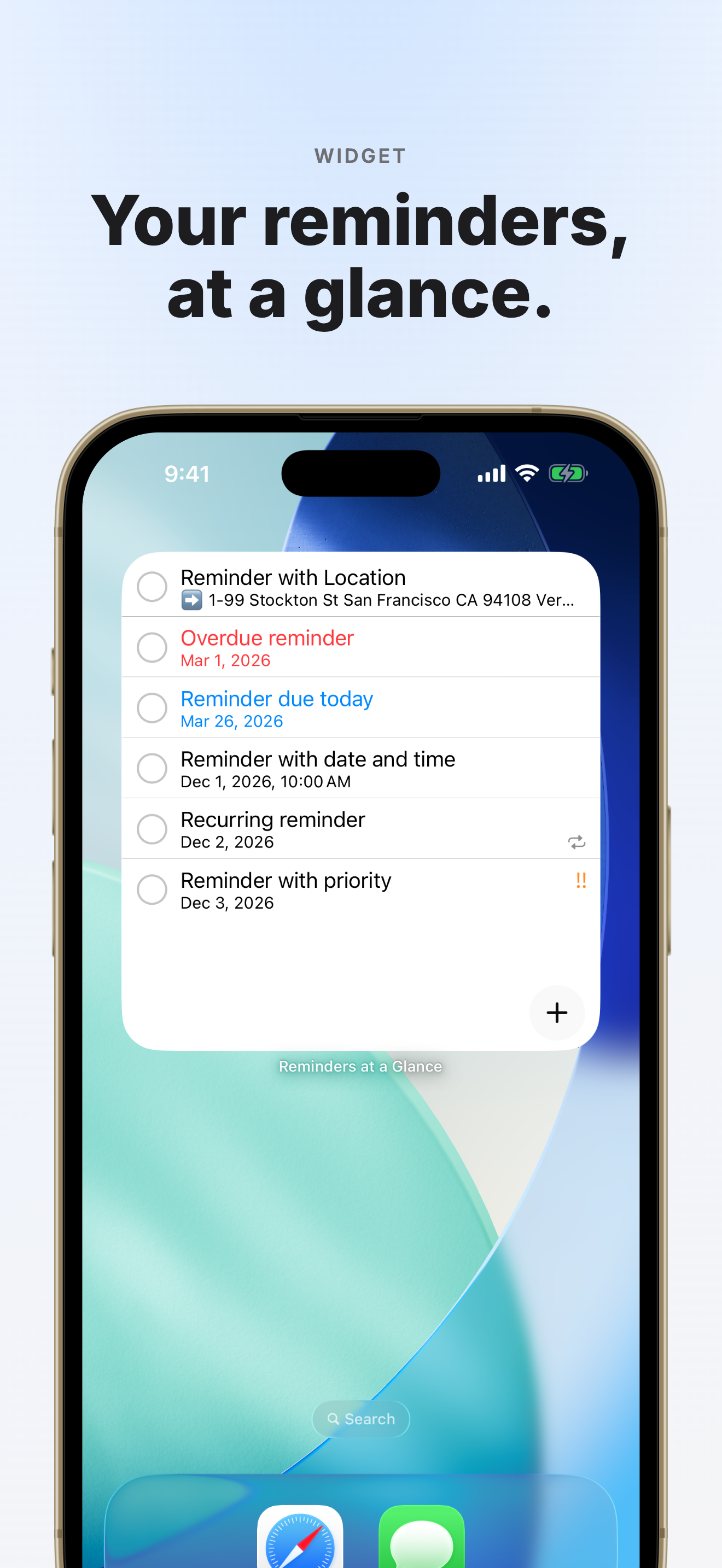
See date, time, priority, and location for every reminder — right on your home screen. Complete tasks from the widget, add new ones instantly, and filter by list.
Everything You Need
Packed with features so your reminders are always actionable — without ever leaving your home screen.
Beautiful Widgets
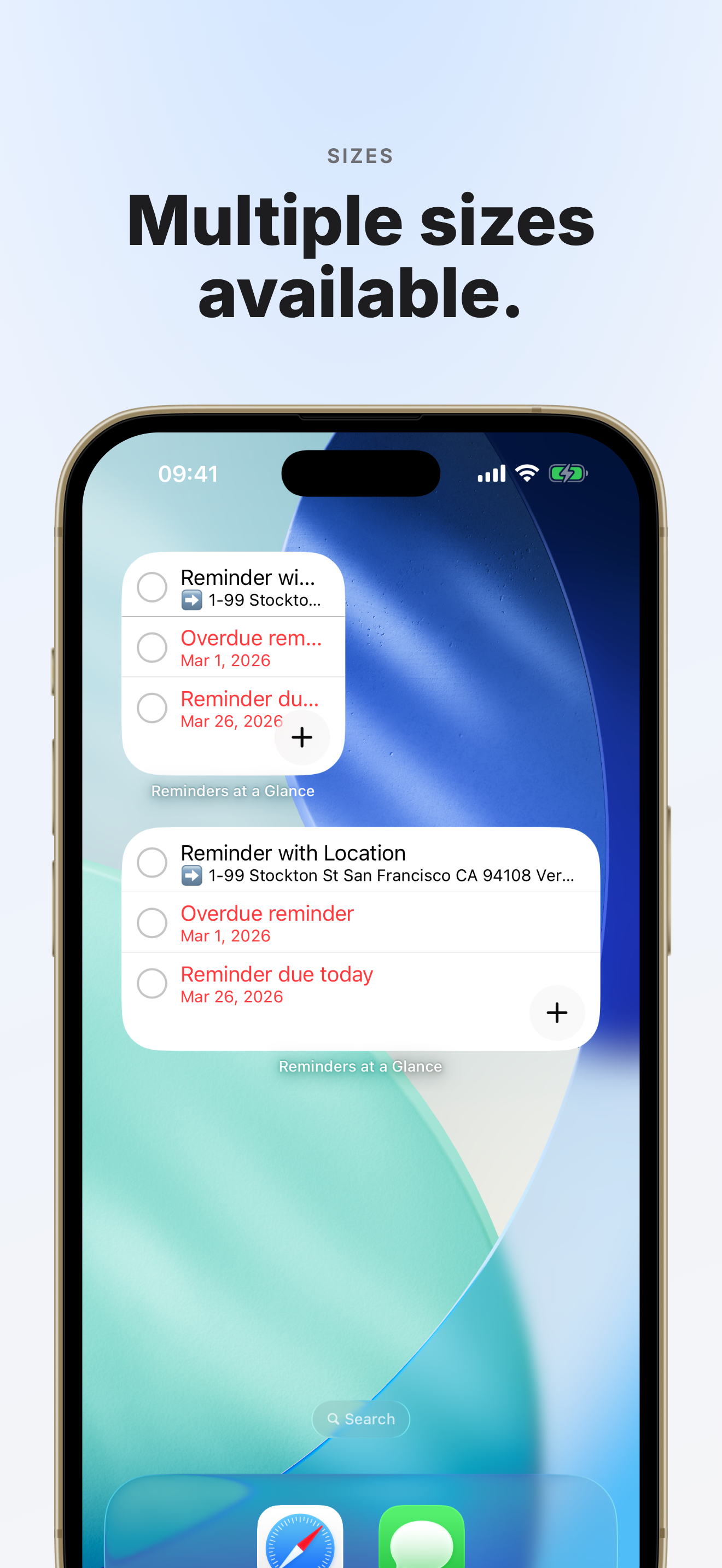
Available in all sizes: small, medium, large, and extra large. Your reminders always in view.
Complete from Widget
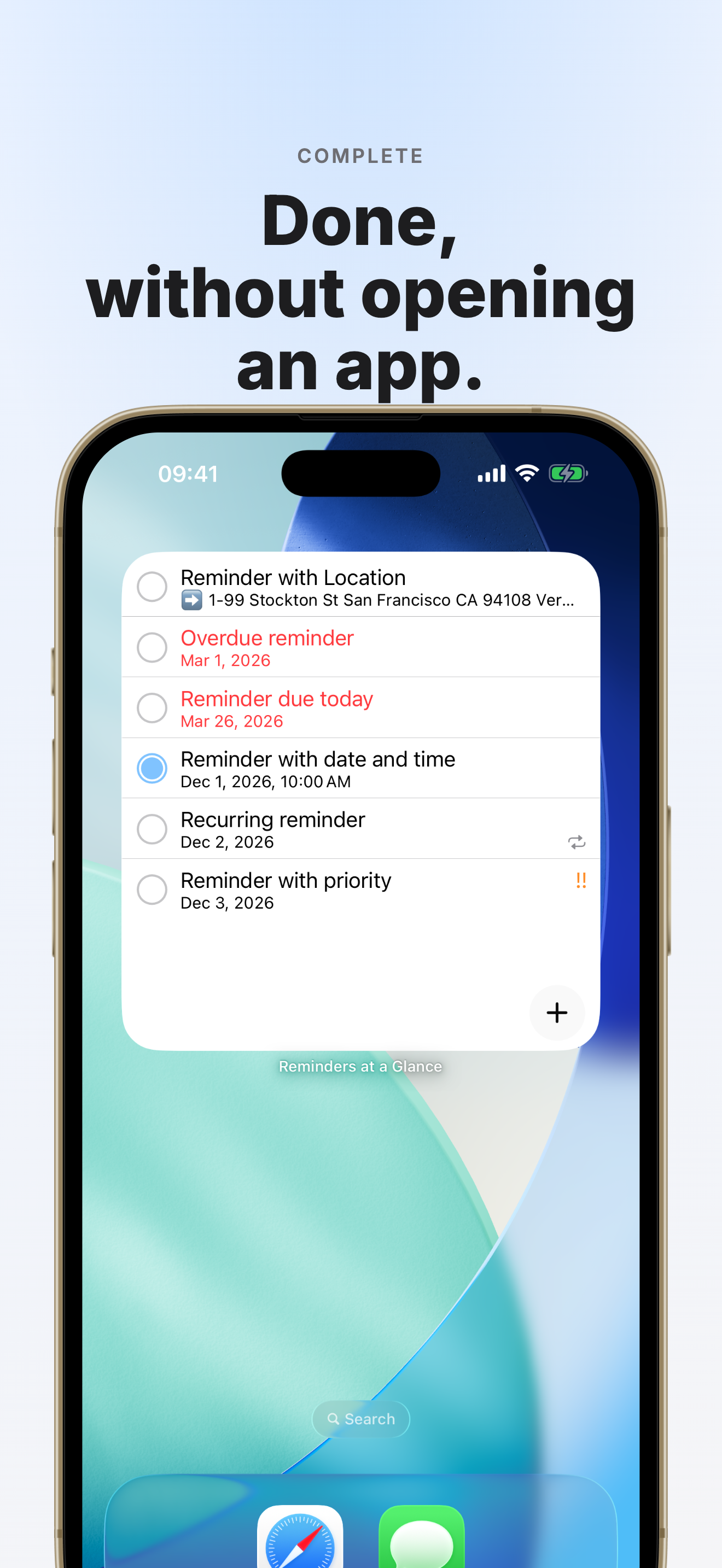
Mark reminders as done directly from your home screen. No need to open the Reminders app.
Filter by List
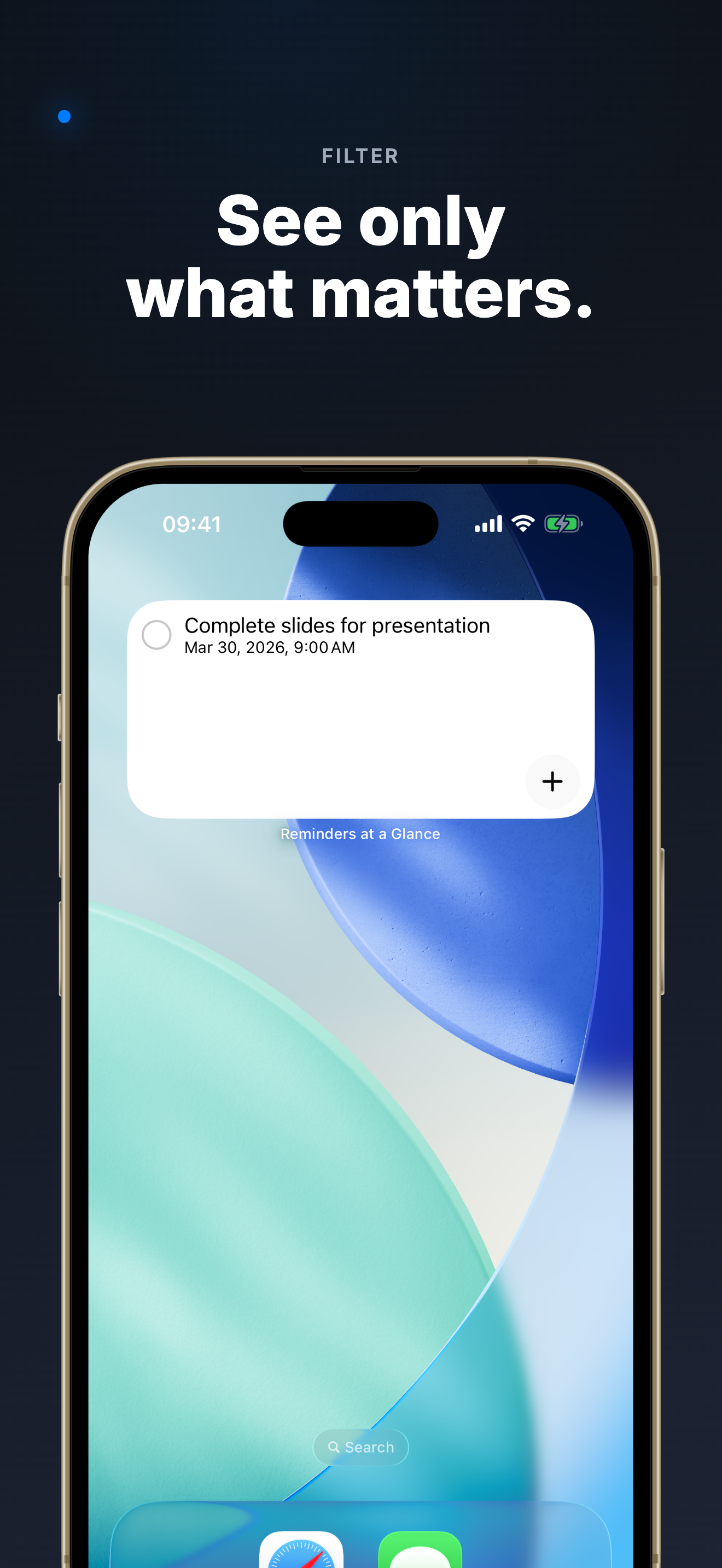
Use it as a task list, checklist, or to-do list, and filter by a specific list.
Quick Add
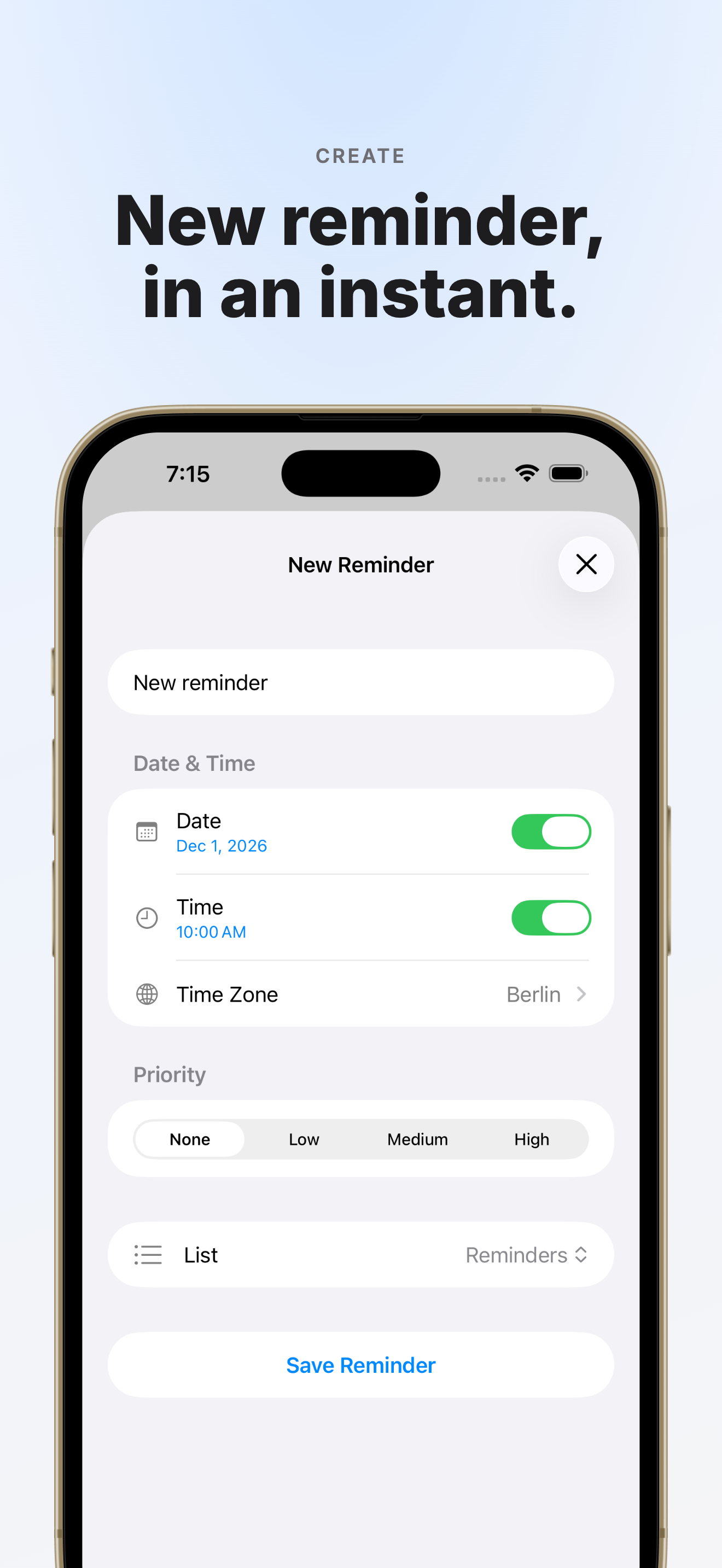
Tap the + button on the widget to create a new reminder instantly.
Edit Reminders
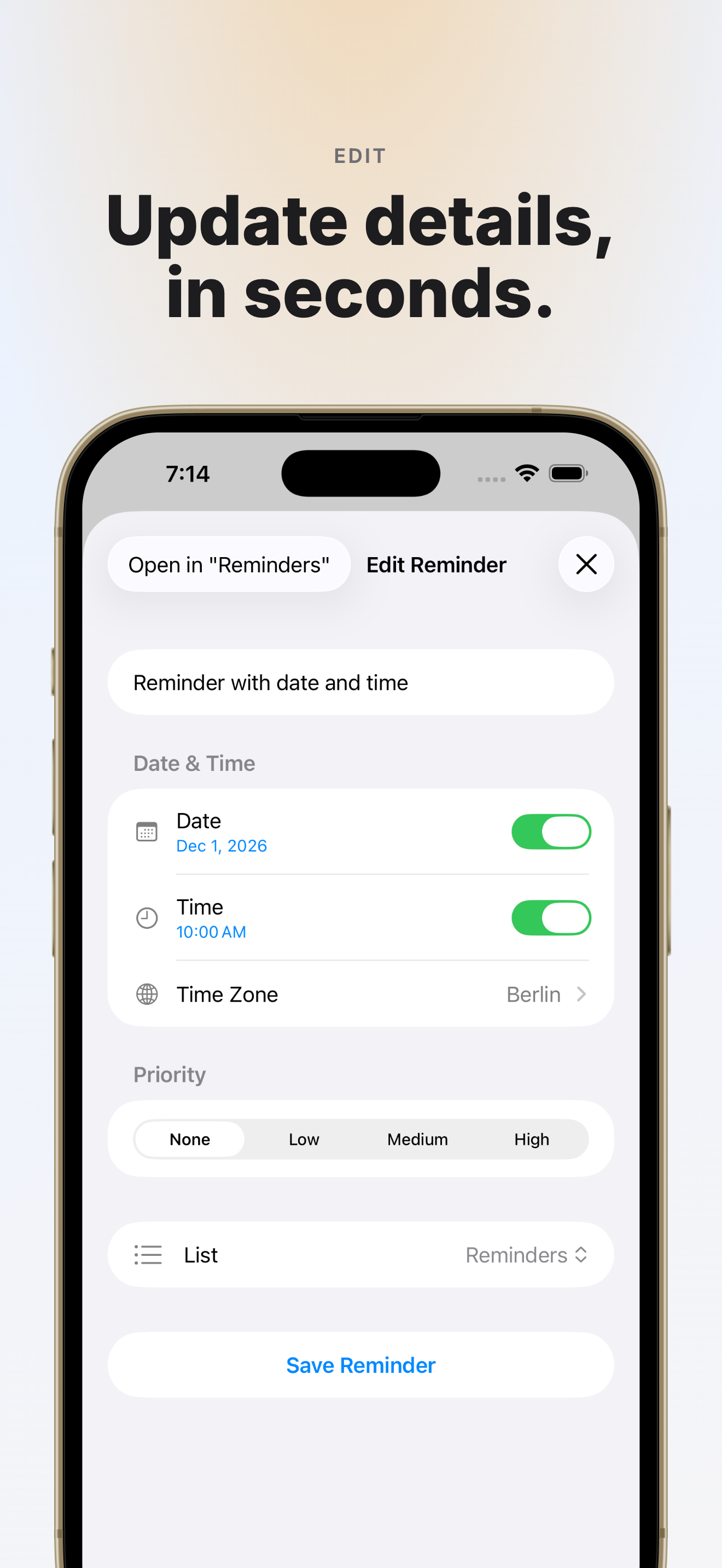
Tap any reminder in the app to edit its title, notes, due date, time, priority, time zone, recurrence, and list. Delete reminders right from the edit screen — no need to switch to Apple Reminders.
Themes
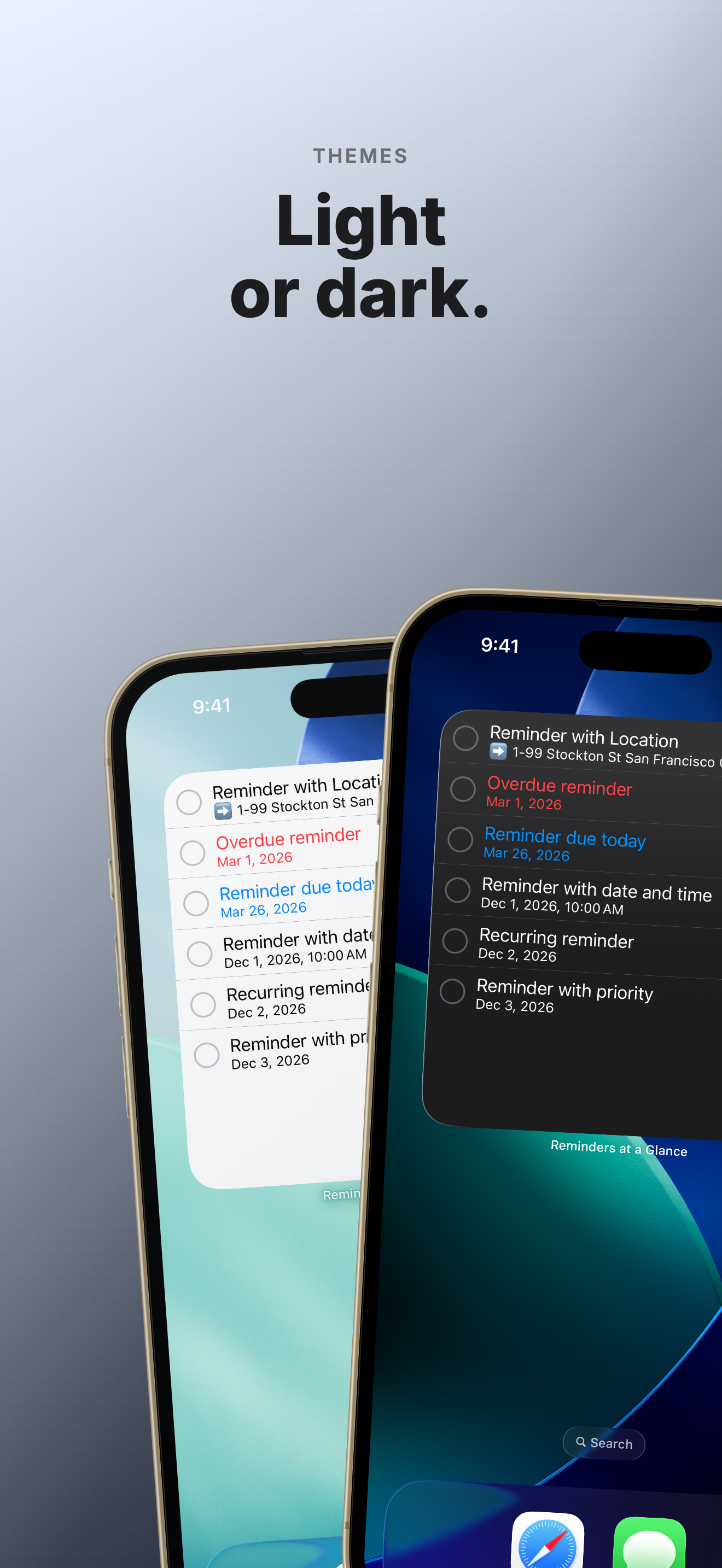
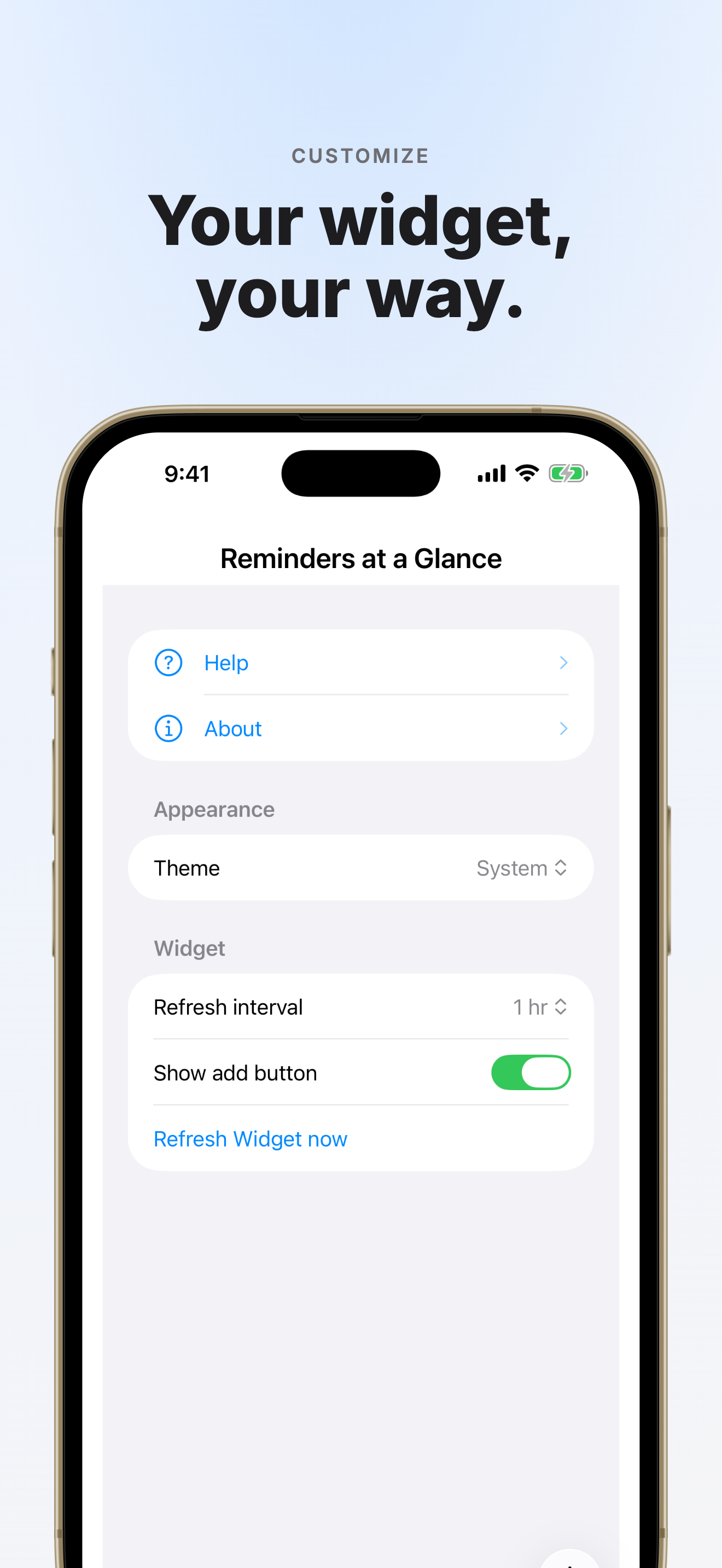
Choose system, light, or dark theme to match your home screen aesthetic.
Customizable Refresh
Set how often the widget refreshes, from every 15 minutes to once a day.
Deep Linking
Tap any reminder to open it directly in the Reminders app for full editing.
See It in Action
How It Works
Add the Widget
Long-press your home screen, tap +, and add "Reminders at a Glance" in your preferred size.
Your Reminders Appear Instantly
The widget reads directly from your existing Apple Reminders — no account, no setup required.
Act Without Opening an App
Complete tasks, add new reminders, or tap to edit — all from your home screen.
How to Use
What is Reminders at a Glance?
Reminders at a Glance displays all your incomplete iOS reminders directly on your home screen. Keep track of your tasks without opening any app.
Viewing Reminders
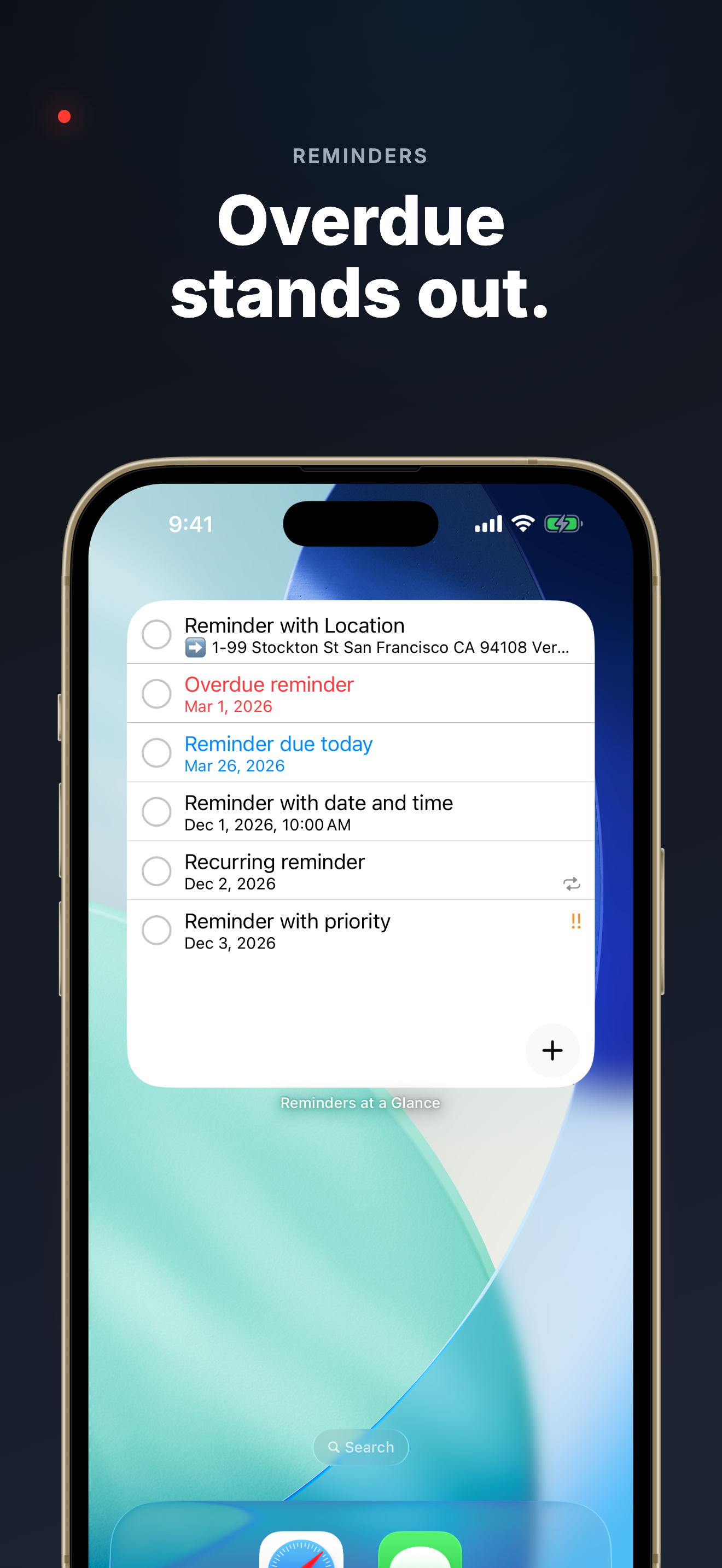
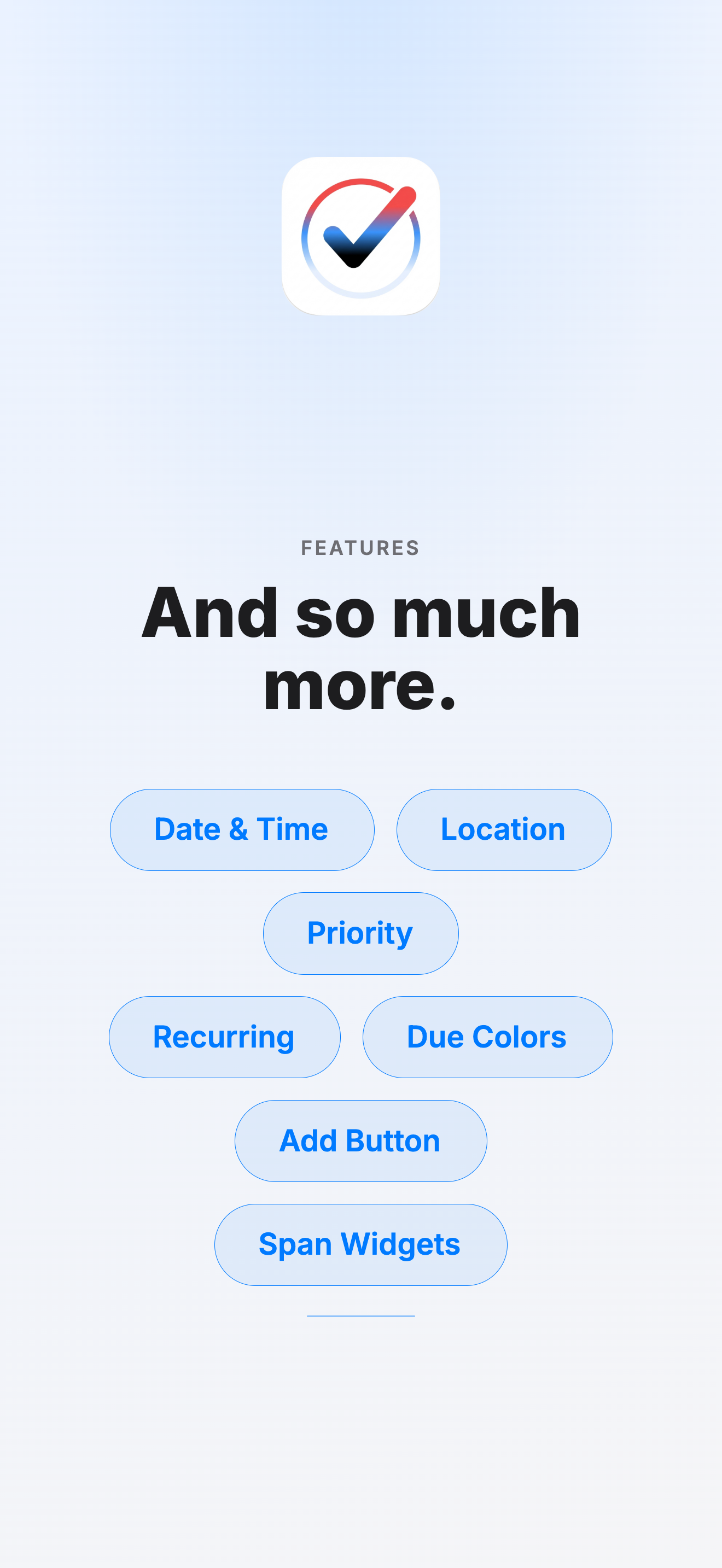
Each reminder on the widget shows its title, due date and time, location (if set), priority level, and a repeat icon for recurring reminders.
Reminders due today are highlighted in blue, overdue reminders in red.
Tap the title of a reminder on the widget to open it in this app and edit the supported fields.
Completing Reminders
Tap the circle button next to a reminder on the widget to mark it as complete directly from your home screen.
Creating Reminders
Tap the + button in this app or on the widget to quickly create a new reminder. You can set a title, notes, due date, time, priority, recurrence, and list.
Editing & Deleting
You can edit title, notes, date, time, priority, time zone, recurrence, and list in this app.
To delete a reminder, open it for editing and tap the Delete button at the bottom. For subtasks, attachments, and other advanced fields, use the standard Apple Reminders app.
Widget Settings
Long-press on the widget and tap "Edit Widget" to configure its settings. You can choose which reminder list to display.
Use the "Skip first N reminders" option to let a second widget continue where the first one left off. Set the second widget's skip count to the number of reminders the first widget shows.
Questions? Contact us at: apple (at) vivalvsoftware.de
Never Miss a Reminder Again
Add the widget today — free to download on the App Store.